Posts

Linux Tips: rsyslogd

This is a quick demo of how to use rsyslogd, I intended to capture whether or not my cron job did execute. First make sure rsyslogd is installed, this can be referenced  here run in shell rsyslogd as soon as it ran, we can tail syslog tail -f /var/log/syslog <sample output> Mar 15 11:13:49 mongodb-enterprise-mongo-1 kernel: [21412388.219761] XFS (dm-17): Ending clean mount Mar 15 11:13:49 mongodb-enterprise-mongo-1 kernel: [21412388.464436] IPv6: ADDRCONF(NETDEV_UP): eth0: link is not ready Mar 15 11:13:49 mongodb-enterprise-mongo-1 kernel: [21412388.474570] IPv6: ADDRCONF(NETDEV_CHANGE): eth0: link becomes ready Mar 15 11:13:49 mongodb-enterprise-mongo-1 kernel: [21412388.475096] docker0: port 7(vethrfcdcac393a) entered blocking state Mar 15 11:13:49 mongodb-enterprise-mongo-1 kernel: [21412388.475101] docker0: port 7(vethrfcdcac393a) entered disabled state Mar 15 11:13:49 mongodb-enterprise-mongo-1 kernel: [21412388.475197] device vet...

MongoDB Tips: Kill long running processes

This is just a quick and simple script to find all active opid that has been running over 10 seconds and they are running against the databases and collections you can specify in the "ns" filter. It's best to first run db.currentOp(    {      "active" : true,      "secs_running" : { "$gt" : 10 },      "ns" : {$in:["equipment.detachment","personnel.detail","personnel.unavailability","personnel.detachment"]}    } ).inprog.forEach(function (doc) { print(doc.opid); }) and verify your output before you execute the kill command in my experience to make sure you are killing the processes that are meant to be killed. Once verifed, simply run: db.currentOp(    {      "active" : true,      "secs_running" : { "$gt" : 10 },      "ns" : {$in:["<db1>.<col1>","<db2>.<col2>","<dbn>.<coln>...

Postgres 10 setup and testrun on Redhat Linux 7

This is just a quick guide to get up and running with Postgres 10 on redhat linux 7 As of the writing of this quick guide, yum install postgresql-server does not allow you to install version 10. Instead, we do As root: yum install -y https://download.postgresql.org/pub/repos/yum/10/redhat/rhel-7-x86_64/pgdg-redhat10-10-2.noarch.rpm Install Client Package yum install -y postgresql10 Install Server Package yum install -y postgresql10-server I always seem to have to initialize the database manually, so here it is. /usr/pgsql-10/bin/postgresql-10-setup initdb We need to now switch to os user postgres su - postgres Run psql command line console, aka PostgreSQL interactive terminal -bash-4.2$ psql psql (10.5) Type "help" for help. postgres=

MongoDB: Change replica set name

This is just a quick reference guide for change the replica set name, for anyone who wish to give this a try, simply replace mongo-n to your own hostname, We will first find and kill the mongod processes running on each host then we will start them individually without the --replSet keyword, which simply means we will start each mongod as standalone database. They are started as follows: Note: if /etc/mongod.conf is used, simply remove --replSet in the config file and start mongod Node1: sudo -u mongodb mongod --port 27017 --dbpath /data/db --logpath /data/db/log/mongod.log --bind_ip localhost,mongo-1 --keyFile /etc/mongo.keyfile --fork Node2: sudo -u mongodb mongod --port 27017 --dbpath /data/db --logpath /data/db/log/mongod.log --bind_ip localhost,mongo-2 --keyFile /etc/mongo.keyfile --fork Node3: sudo -u mongodb mongod --port 27017 --dbpath /data/db --logpath /data/db/log/mongod.log --bind_ip localhost,mongo-3 --keyFile /etc/mongo.keyfile --fork Once all mongod...

MongoDB tip: 4 ways to modify replica set configuration

This is just a quick guide on how to modify your replica set settings in 4 different ways. This guide is assuming you have a functional replica set ready, it doesn't matter if it's a single node or multi-node replica set. In each of the four method, I am looking to modify the priority of the _id=0 node Method 1: Via Mongo Shell Login to your Mongo shell,  simply type in mongo , assuming default port is being used and authentication is not enabled [in Mongo shell] cfg = rs.conf() cfg.members[0].priority=99 rs.reconfig(cfg) # "ok":1 indicates the new configuration has been set  MongoDB Enterprise minvera:PRIMARY> rs.reconfig(cfg) {         "ok" : 1,         "operationTime" : Timestamp(1528464949, 1),         "$clusterTime" : {                 "clusterTime" : Timestamp(1528464949, 1),             ...

MongoDB Tip: MongoDB Compass and kill long running transaction

Image
We can use MongoDB Compass to monitor database performance live, which is useful sometimes when we encounter some issues on the database where some queries are taking longer than normal.  In this case, we can kill these queries by first identifying the opid of the long running query using mongodb compass. This is the view of the MongoDB Compass tab,  click into the command on the top of the list of slowest operations Now copy the opid and use any client tool of your choosing, make sure you are connected to the primary node by first identify yourself with rs.isMaster() ismaster should contain the value "true" then  db.killOp(<opid>) Sometimes the transaction may take a few second to kill, and you click into the slowest operation, you can see the pendingKill for this opid is set to true.  

MongoDB OpsManager 3.6.5 version manifest binary location change

Image
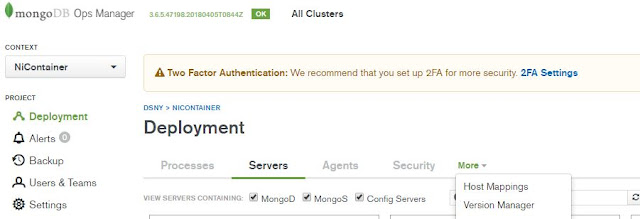
I ran into an issue after I initiated a backup job through opsmanager, which indicated that the db version directory is not available. First I check my version manifest to see if the version that the daemon process is looking for is checked Click on version manager Then we can select the MongoDB versions Since I can see these are checked, I went to the default location where these db versions are stored, then I realized the default location simply does not have enough room to store all these binaries. I had to change the location to store them Default location where OpsManager would download the binary for various versions of MongoDB is /opt/mongodb/mms/mongodb-releases/, we can change it by clicking into admin on top right corner of the page , then General > Ops Manager Config > Miscellaneous, scroll down to Versions Directory and change the value there. Once the change has been made, go back to the terminal and restart the ops manager by running service mon...